Admin Panel
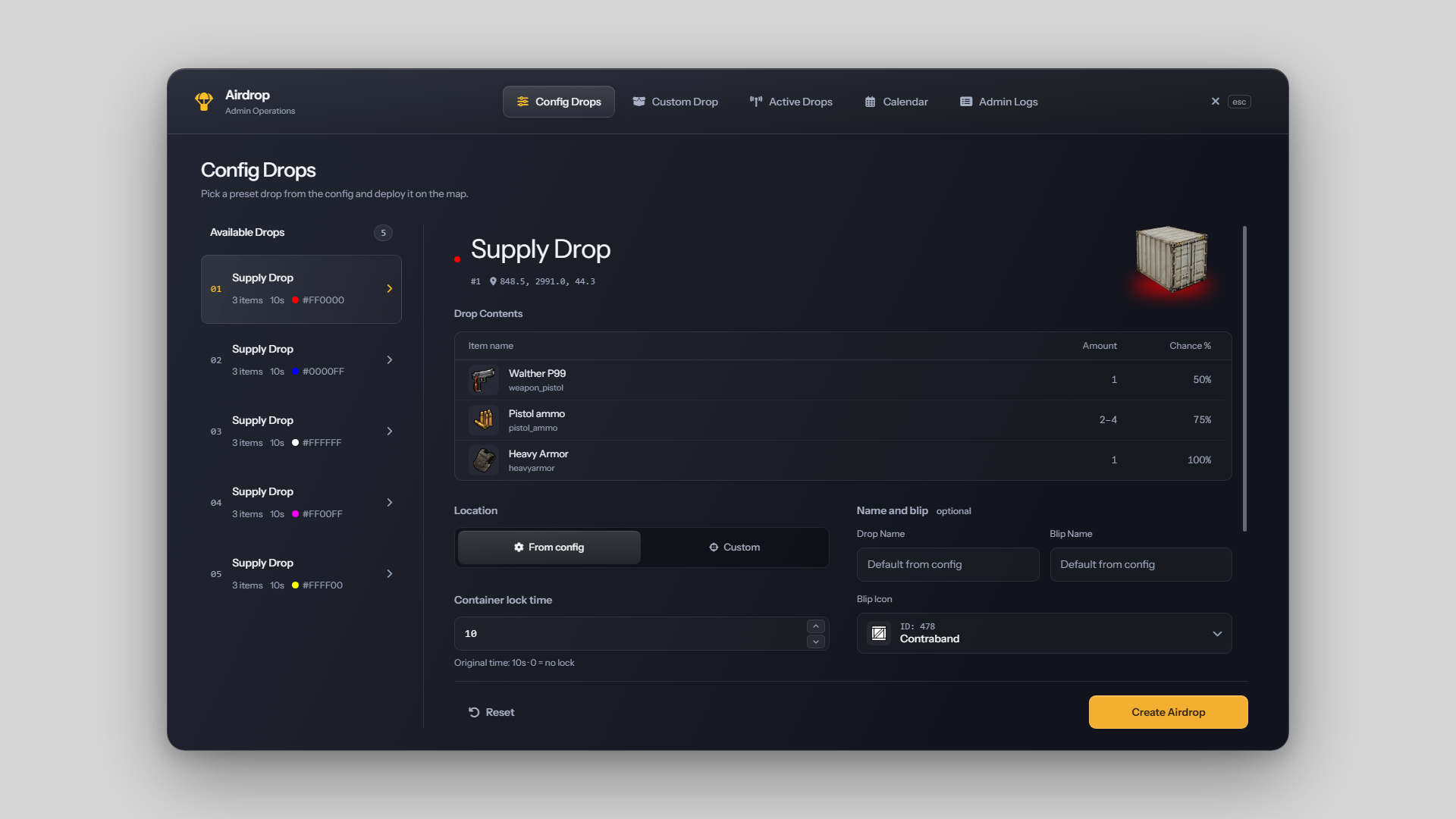
Run /airdropanel in game to open the panel. Administrator permissions are required; see Commands and Permissions. Press Escape or use the close control to leave.
The panel contains Config Drops, Custom Drop, Active Drops, Calendar and Admin Logs.
Deploy a configured drop
- Open Config Drops and select a location.
- Review its contents and coordinates.
- Adjust the drop name, location, lock duration, blip, effects and available settings as needed.
- Use the position control to capture your current in-game coordinates if required.
- Launch the drop and wait for confirmation.
A successful launch closes the panel. If a launch fails, review the displayed message and correct the issue. If confirmation is missing, check Active Drops before trying again.
Changes made here apply to this launch. For permanent changes to configured locations or automatic drops, edit config/config.lua; see Configuration.
Create a custom drop
- Open Custom Drop.
- Enter the drop name and blip label.
- Enter X/Y/Z coordinates or capture your current position.
- Add at least one item. Search by technical name or display label, then set its amount or quantity range and chance.
- Set the lock duration, smoke and light options.
- Choose the blip sprite, color and scale, and review the remaining drop settings.
- Launch the drop or save it as a reusable preset.
Use the arrow keys to navigate item suggestions, Enter to select an item and Escape to close the suggestions. If the item catalog is unavailable, enter the inventory's technical item names manually. Items must exist in the selected inventory. See Items and Inventory.
Review the preview and test custom destinations and container models in game before using them for an event.
Manage presets
Use the preset controls in Custom Drop to load, save, edit, delete, search, refresh, export or import configurations. Loading a preset fills the form without launching a drop. Saving a loaded preset updates it; use Reset before entering a separate configuration.
See Presets for the complete workflow.
Inspect active drops
Active Drops shows an active-drop list and satellite map. Select a row or marker to view details, teleport to the drop or remove it. Removing a drop also clears its remaining loot.
| Status | Meaning |
|---|---|
| Active flare | The flare is active and delivery has not started. |
| Awaiting delivery | The container is waiting to be placed directly at the destination. |
| Helicopter inbound | Helicopter delivery is in progress. |
| Container descending | The container has been released and is falling. |
| Container landed | The container has reached its destination. It may still be locked. |
The item count shows the number of configured item entries. It does not show the remaining loot or total item quantity. A landed container may still be locked or unopened.
Teleporting closes the panel and moves your character, or your vehicle if you are driving. Check that the destination has enough space for the vehicle.
Plan a calendar event
Open Calendar, choose a month, week or day view and select a date or time. Choose a configured drop or saved preset, name the event and set a future server-local date and time. See Calendar and Scheduling for recurring events, pauses and missed launches.
Review admin logs
Admin Logs shows recent activity with the administrator's name, time, action and details. Use its filters to find relevant entries. Automatic actions are identified as system activity.
The list contains up to 1,000 recent entries and is cleared when the resource restarts. It is intended for reviewing recent activity, not permanent audit storage.
Panel notifications
Success and error messages appear in the upper-right corner. A check marks successful actions; a warning triangle marks errors. If an action has no confirmation, refresh the relevant list before repeating it.
Permissions and keyboard behavior
Access is controlled by the server's administrator permissions. See Commands and Permissions if the panel opens but an action is denied.
Use Tab and Shift+Tab to move between controls, Enter to activate a control and Escape to close suggestions, dialogs or the panel. In the calendar, arrow keys navigate the grid and Enter opens the selected date or time.