Presets
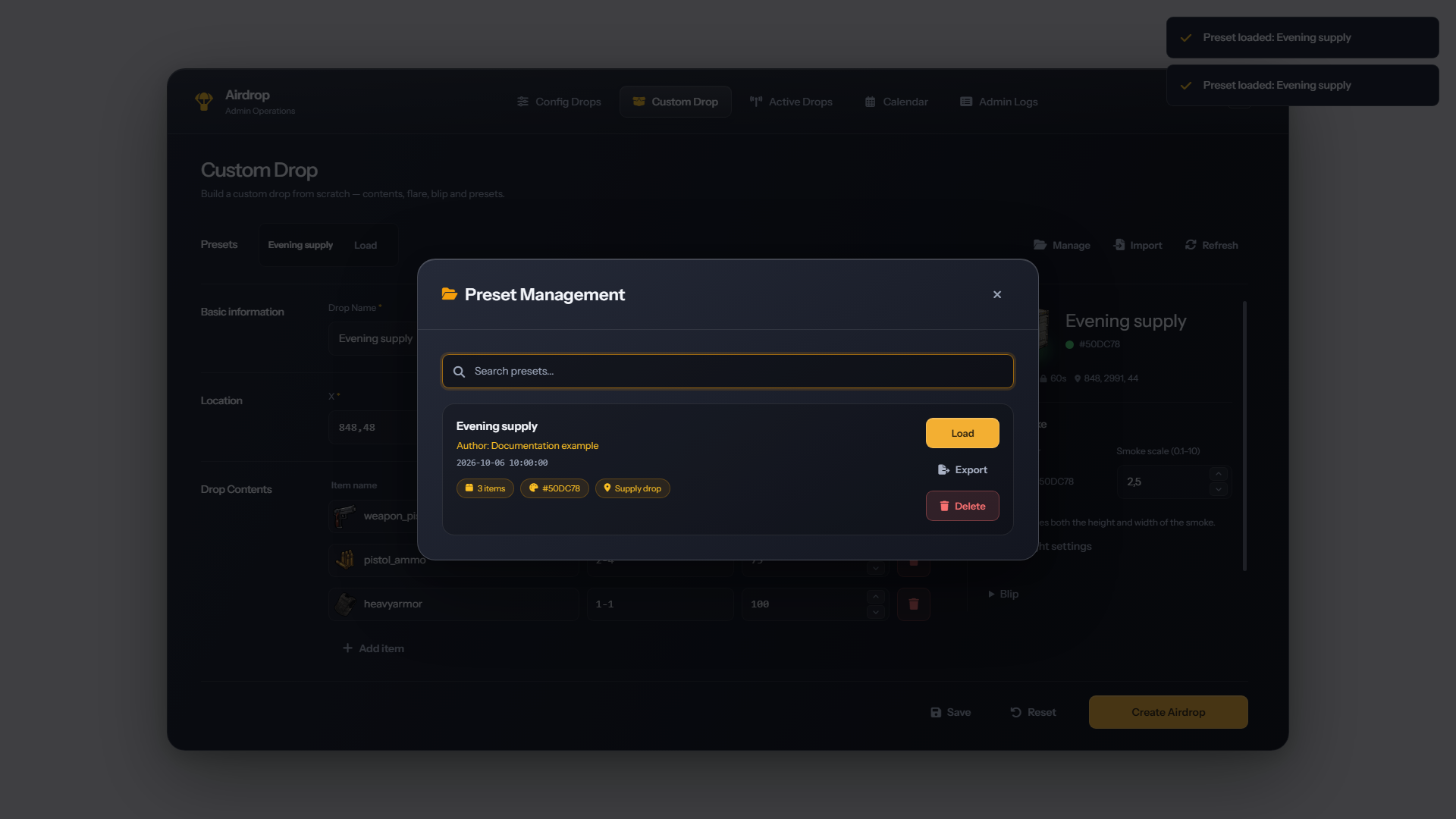
A preset is a reusable drop configuration that remains available after a resource restart. Saving a preset does not add it to the automatic random-drop pool. Use a calendar entry to launch it on a schedule.
Save and reuse
- Prepare a drop in Custom Drop.
- Open Save Preset and enter a preset name.
- Save and wait for the success confirmation.
- Load the preset whenever you want to edit or launch that configuration.
Loading a preset fills the form without creating a drop. Saving while a loaded preset is selected updates that preset, even if its name is changed. Use Reset before entering a separate configuration and saving it as a new preset.
Presets display their original author and creation time, with the latest editor and modification time after an update. Authorized administrators can edit and delete shared presets.
Saved settings
Presets retain the drop's location, names, item definitions, smoke and light settings, blip settings, lock duration and per-drop options.
Before scheduling an imported or older preset, load it and verify its coordinates and lock duration. A preset without a usable location cannot be scheduled. If no lock duration was saved, loading it into Custom Drop sets the duration to zero; scheduling it directly uses a two-minute lock.
Export
Choose Export in preset management to copy the preset. If automatic copying is unavailable, an export dialog provides text you can select and copy.
Keep the exported text when sharing the configuration or saving a copy of an individual preset. For complete backups, see Saving and Backups.
Import
- Open Import in preset management.
- Paste the text from a preset export.
- Confirm the import and wait for the success message.
- Load the imported preset and review its location, items and settings before launching it.
Import creates a new preset and records the importing administrator as its author. In English, the imported name receives the suffix (Import). Importing the same text again creates another preset.
Items in an imported preset must exist in the destination server's inventory. See Items and Inventory.
If a save or import has no confirmation, refresh the preset list before trying again.
Delete and schedule interactions
Deleting a preset does not cancel an active drop. Existing calendar entries retain the drop settings saved when they were created, even if the source preset is later edited or deleted. See Saved drop settings.
Item metadata preservation
Loaded item metadata is retained when quantities or chances change. Changing an item's technical name removes that row's original metadata, and newly added items start without metadata.
The panel does not include a metadata editor. Define item metadata through the item configuration and confirm that the selected inventory supports it.