Visual Reference
The following screenshots illustrate F5 Airdrop controls using example drops, presets and calendar entries. Names, item catalogs and values depend on the server configuration. See Configuration for the supplied defaults. Select an image to view it at full size.
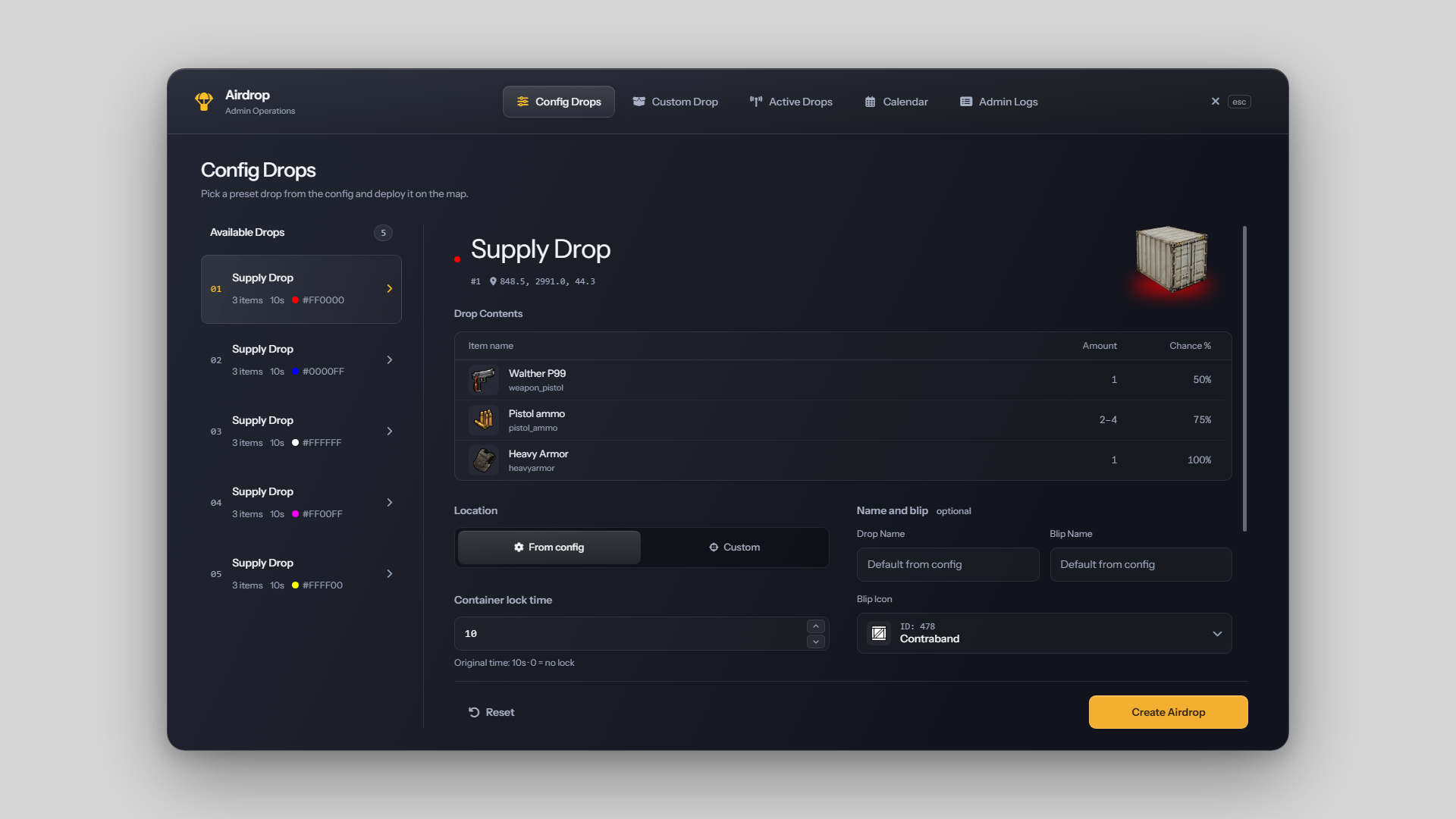
Config Drops
Select a configured drop to inspect its location, contents, lock duration and visual effects before deployment.
Custom Drop
Set the destination, item quantities and chances, lock duration, flare effects and map blip. Save the configuration as a preset or launch it immediately.
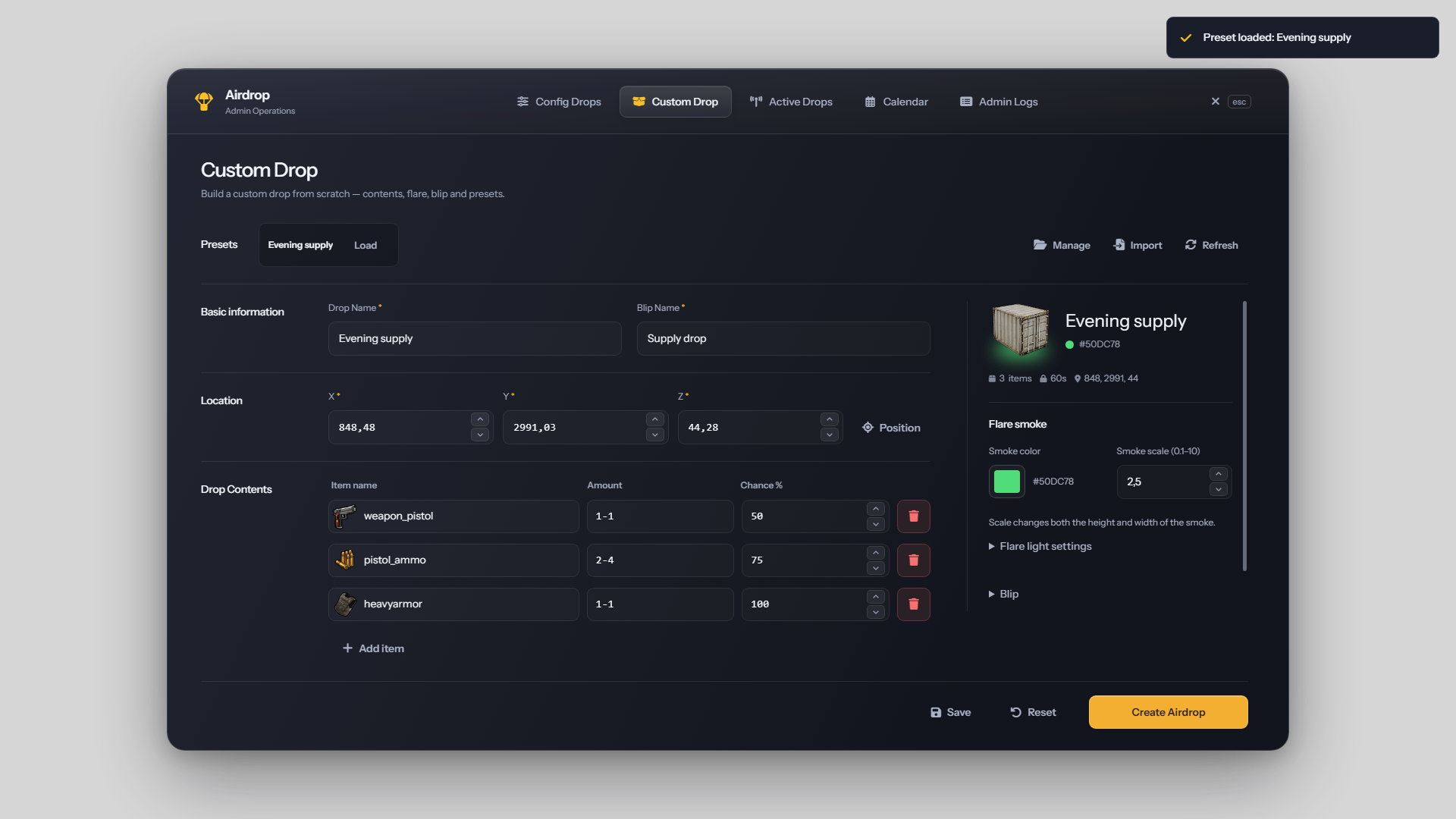
1920 × 1080 · Per-Drop Settings
Inventory search
Search the inventory catalog by item name or display label. Each result shows the available item image and technical name.
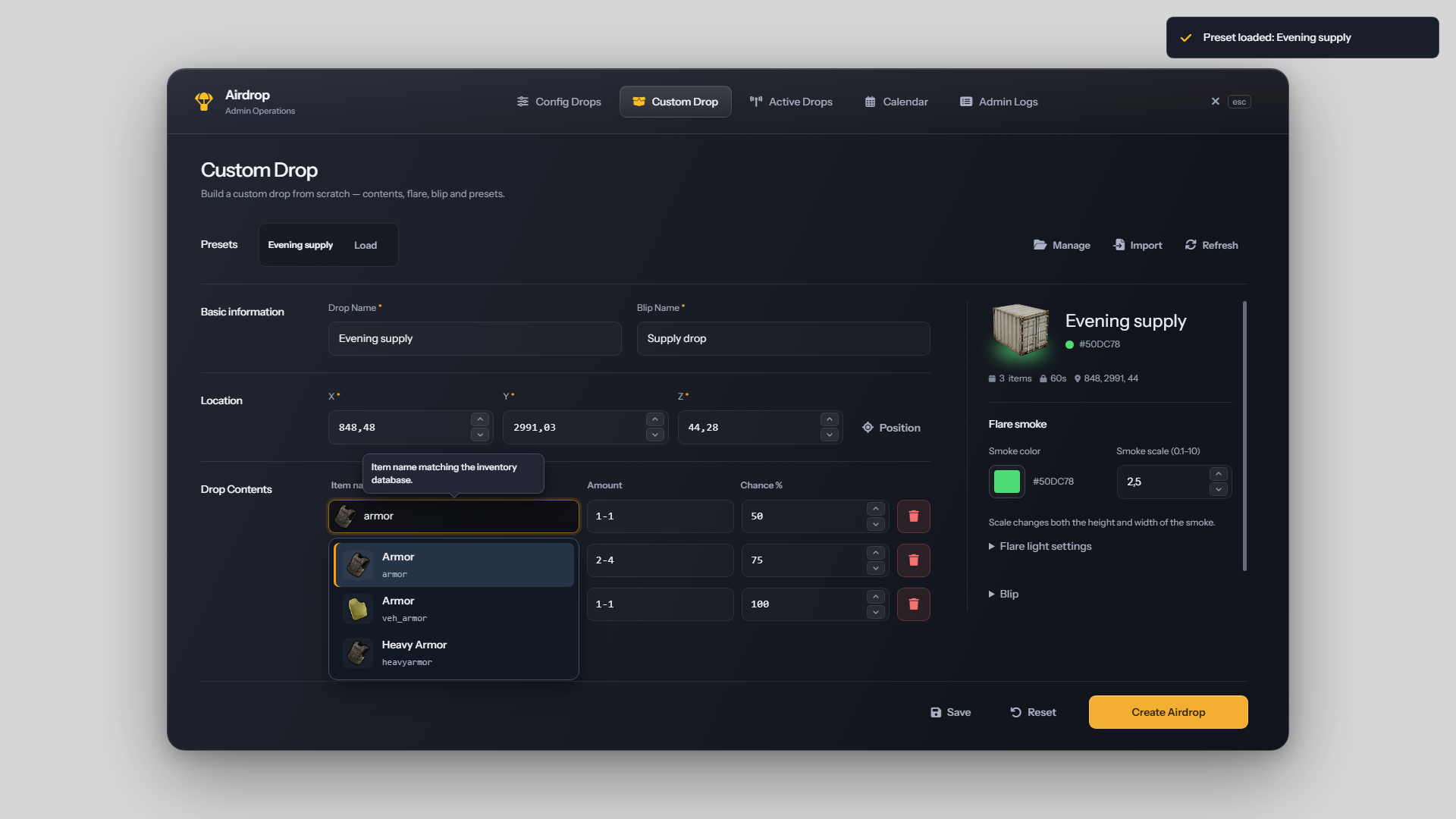
1920 × 1080 · Items and Inventory
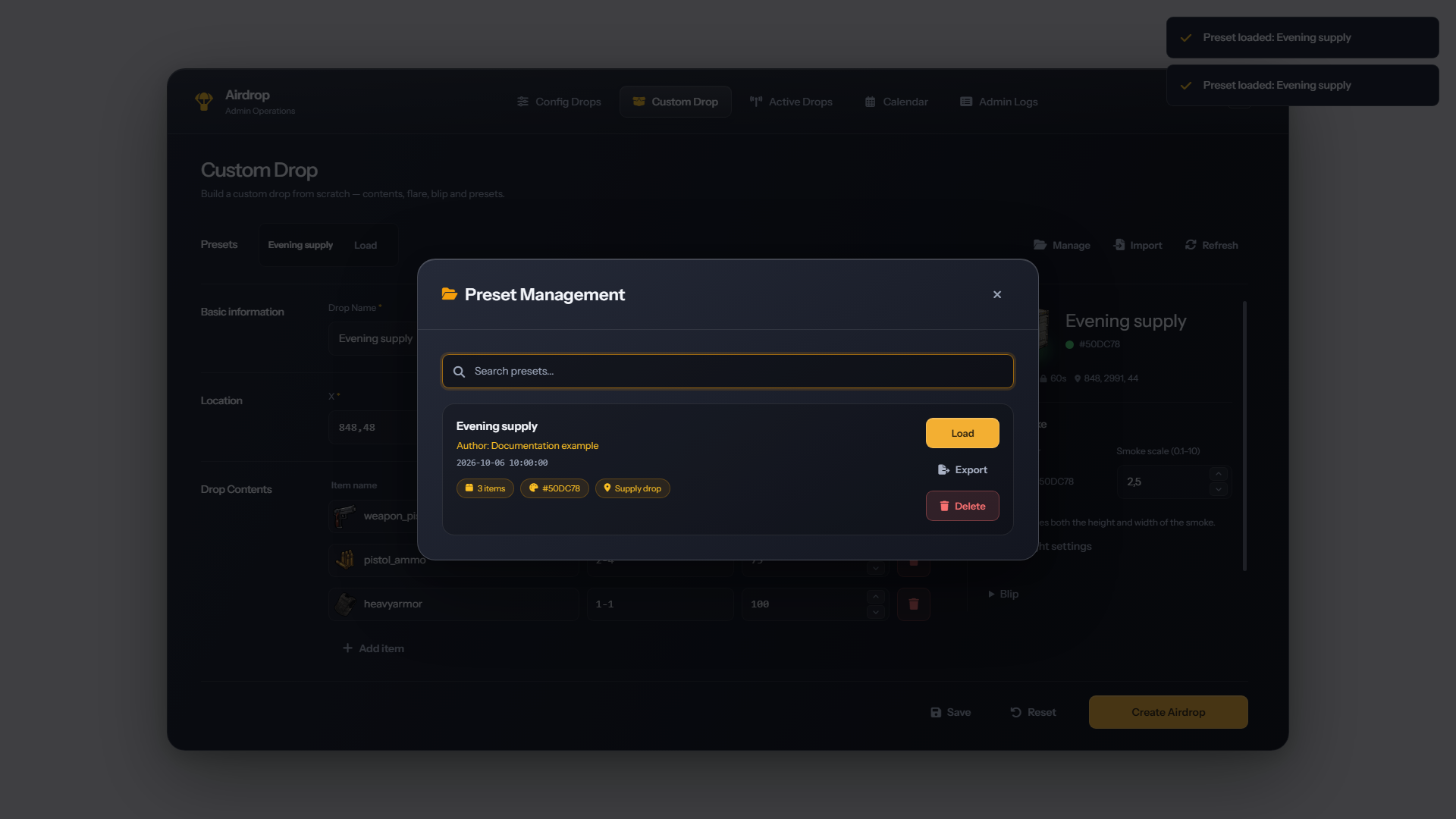
Preset manager
Search, load, export and delete saved presets. Load a preset into Custom Drop to edit it. Author and date fields identify its creator and creation time.
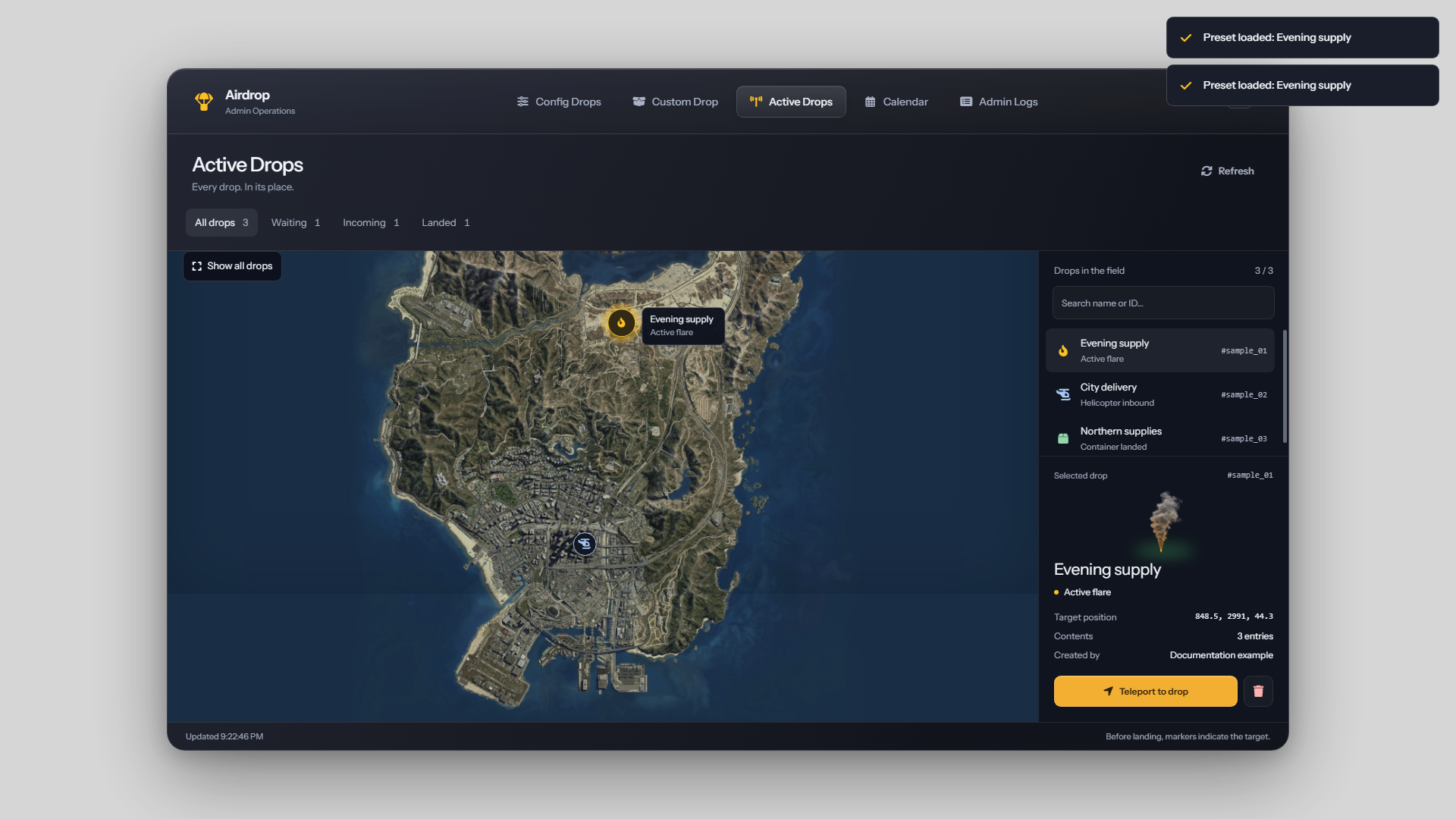
Active Drops
View drop locations and delivery stages on the map. Select a drop to inspect its details, teleport to it or remove it. Map markers show the destination before landing and the container location after landing.
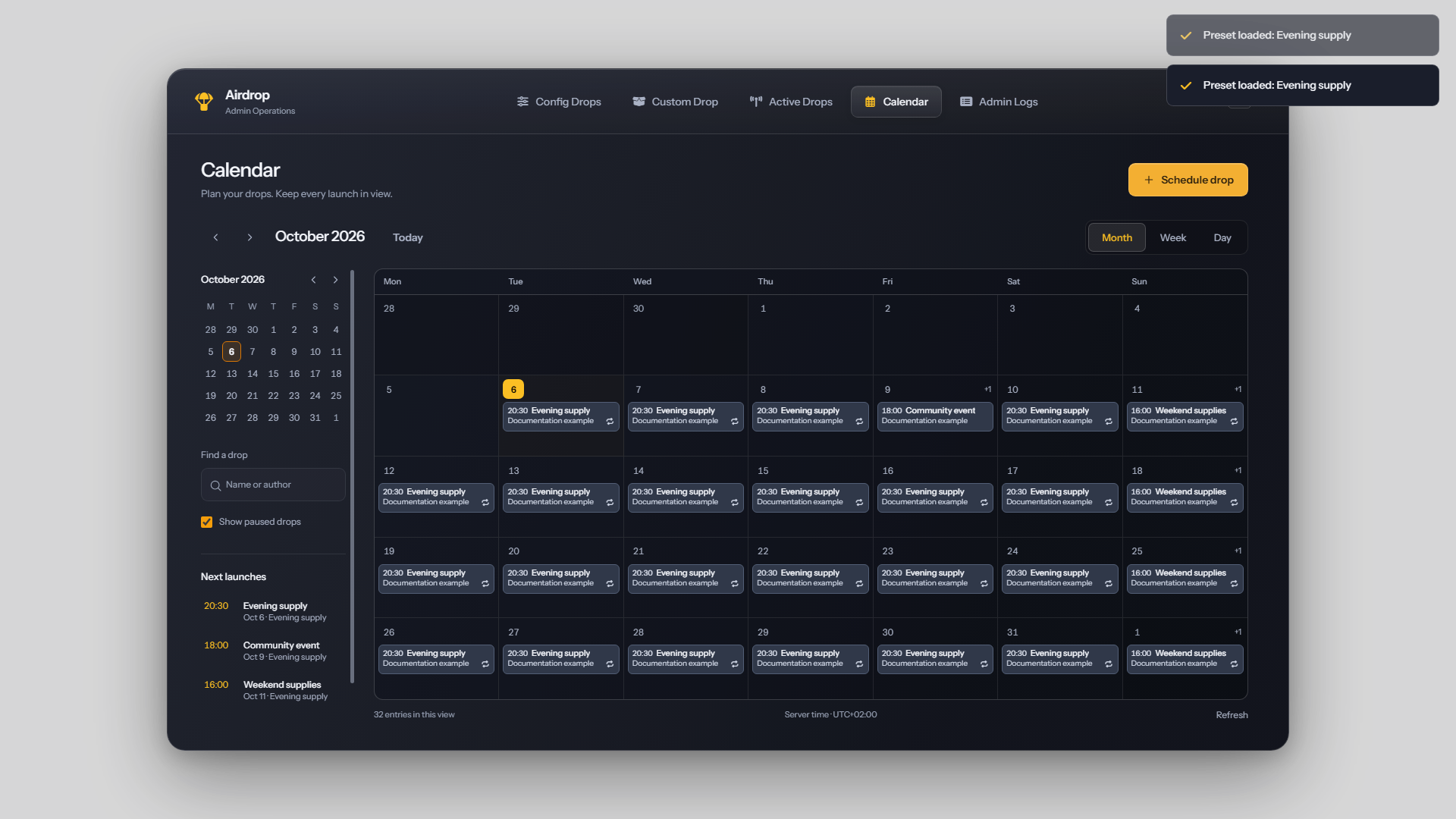
Calendar
Use month, week or day views to manage one-time, daily and weekly events.
The entry editor combines the selected drop, event title, server-local date and time, and recurrence settings.
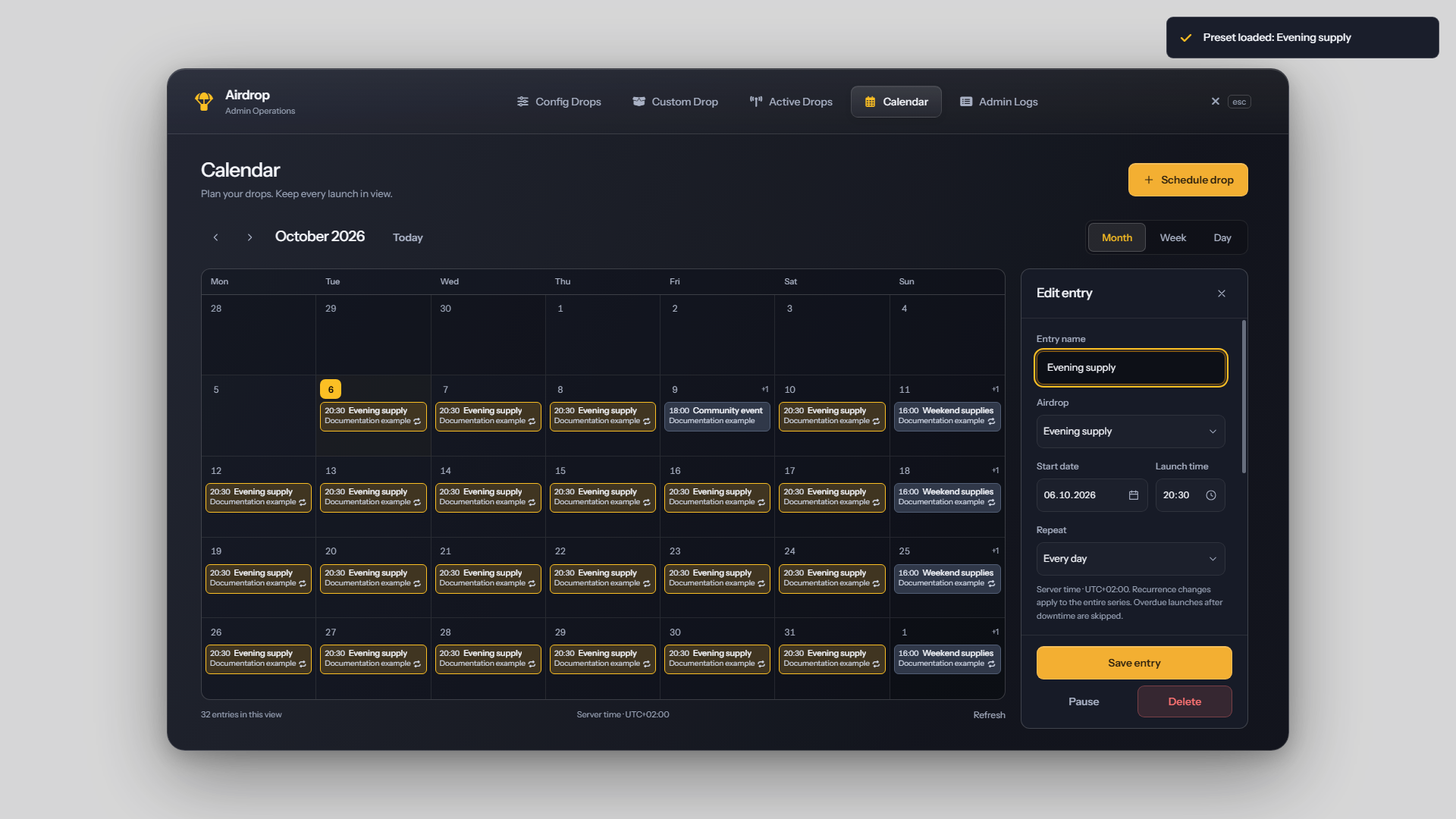
1920 × 1080 · Calendar and Scheduling
Notifications
Panel notifications confirm actions and report errors in the upper-right corner. Multiple messages appear in a vertical stack.
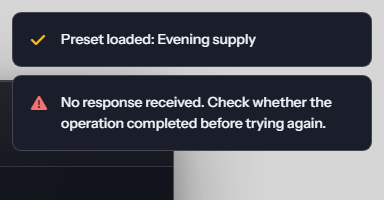
Full interface — 1920 × 1080 · Admin Panel
Activation announcement
The activation banner displays the time remaining until dispatch or direct container placement, together with the map hint.
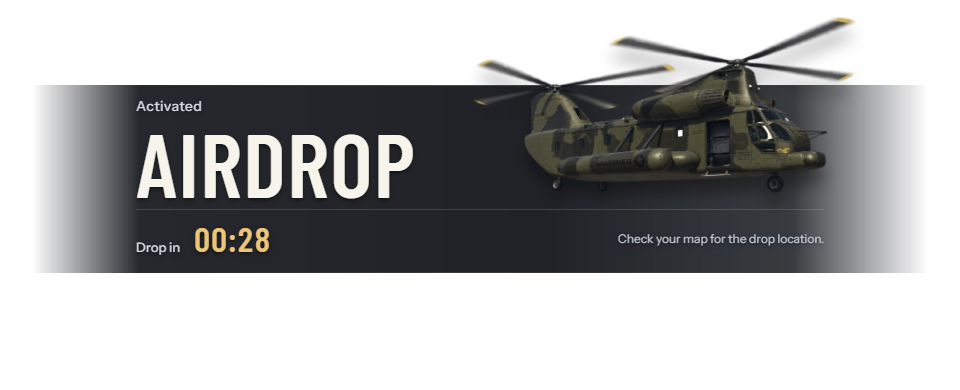
960 × 390 · Full screen — 1920 × 1080
The banner can show the dispatch status when delivery begins. This status does not confirm that the container has landed.
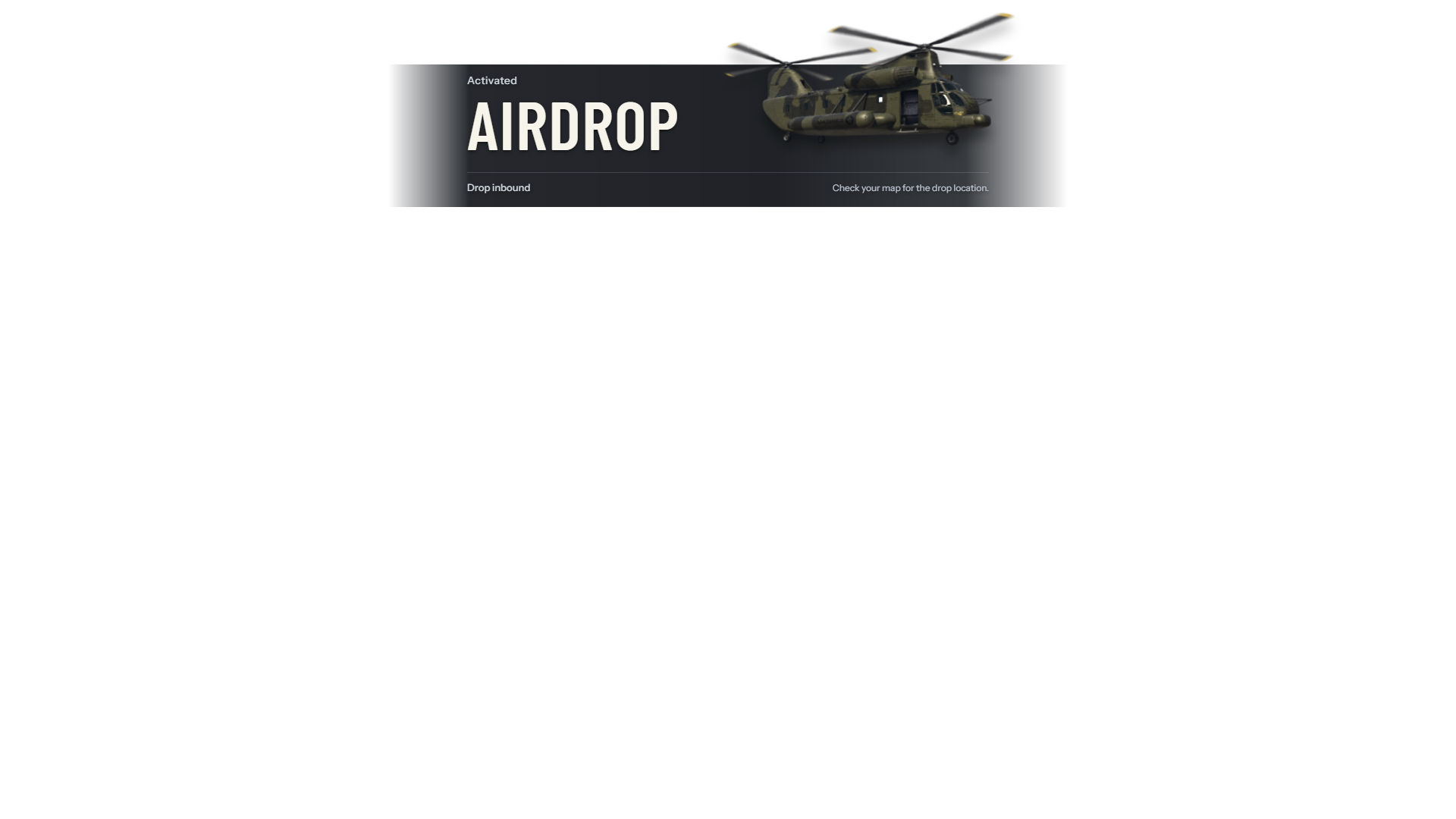
1920 × 1080 · Announcements and Audience
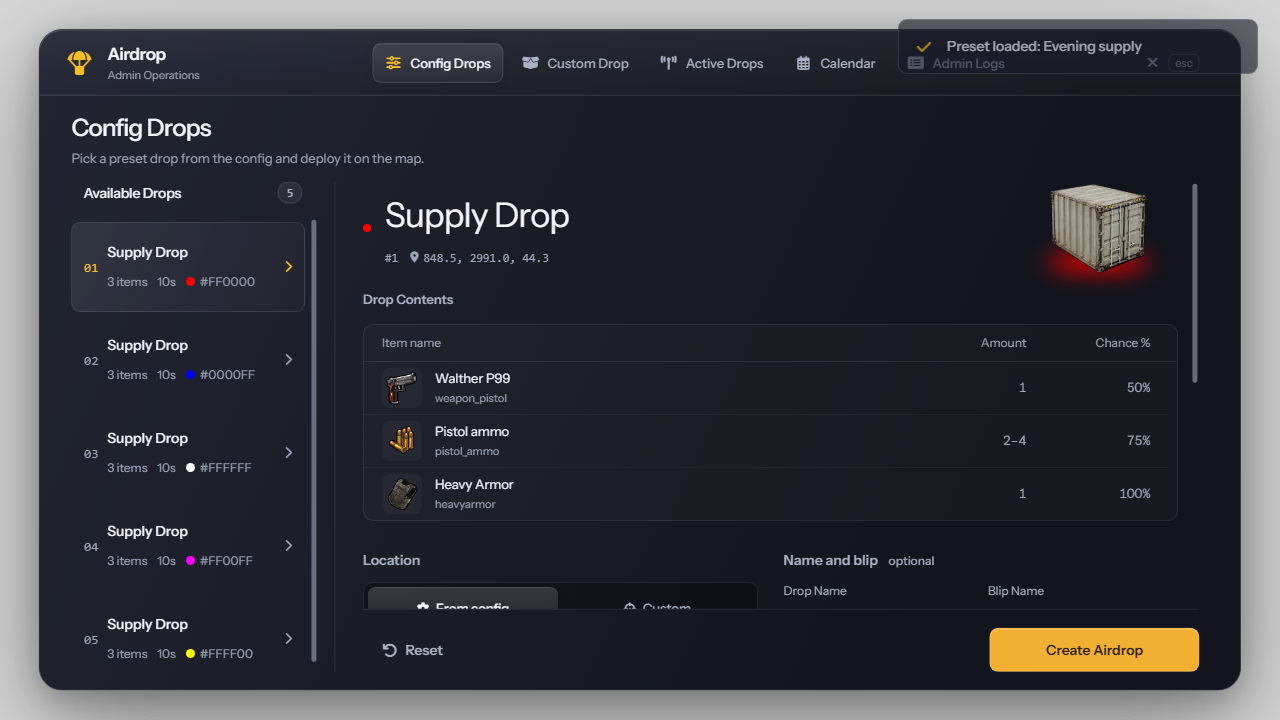
Compact PC layout
At 1280 × 720, the panel keeps navigation and primary actions visible while the workspace scrolls.