Calendar and Scheduling
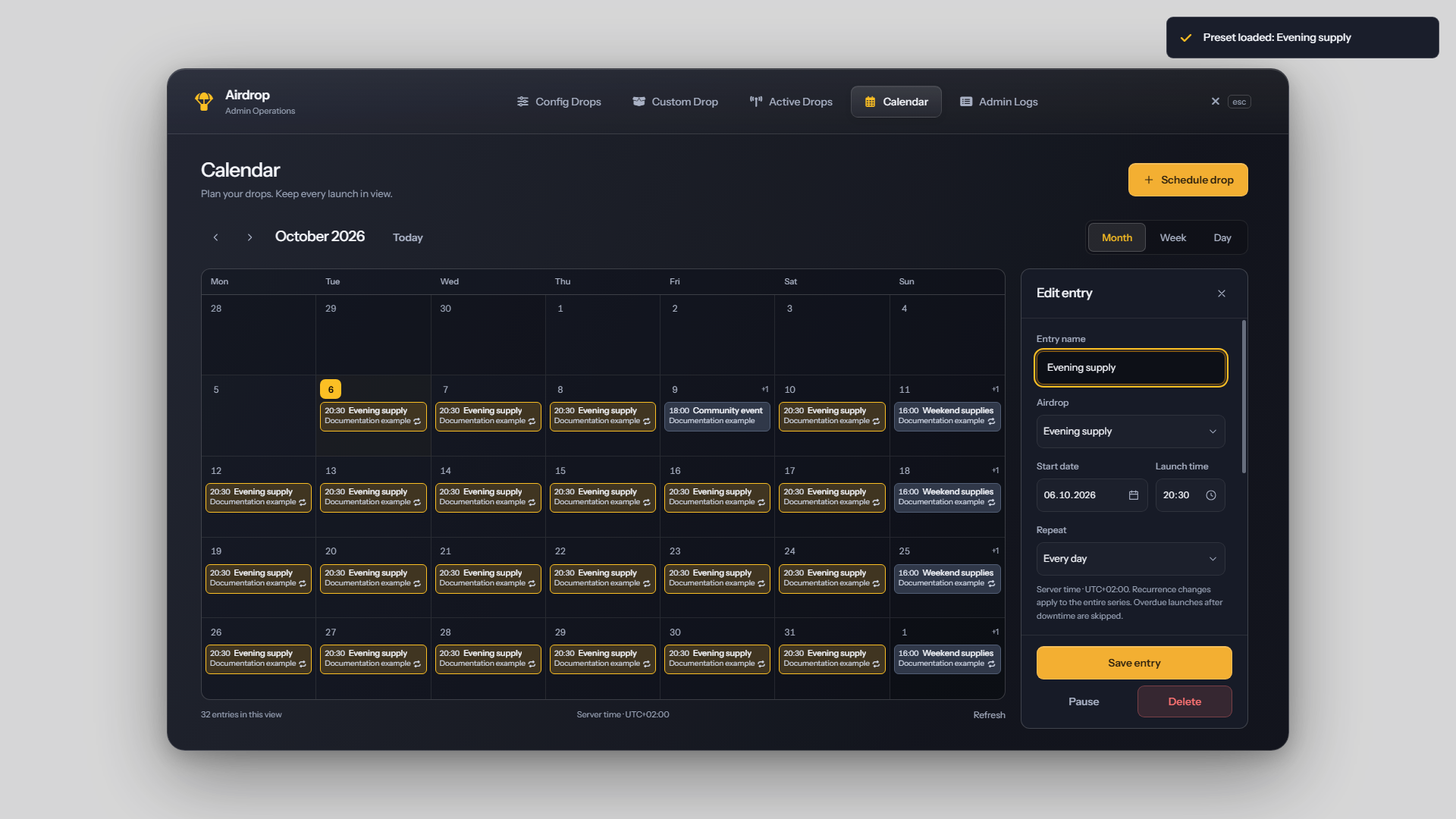
The Calendar tab schedules configured drops and saved presets. Calendar entries remain available after a resource restart. They run independently of automatic random drops: disabling automatic drops with /airdrop_auto_toggle does not pause the calendar.
Create an entry
- Open
/airdropaneland select Calendar. - Choose the month, week or day view and select a date or time, or use the new-entry control.
- Enter a title and select a configured drop or saved preset.
- Set a future date and time.
- Choose Once, Every day or Every week, then save and wait for confirmation.
The entry shows its creator, creation time, latest editor and selected drop details. Drag an entry to move its scheduled date or time. Editing a recurring entry changes the entire series; individual occurrences cannot be edited separately.
Time zone and recurrence
The calendar uses the FiveM server's local time. Its displayed UTC offset identifies the server's current time zone offset. Use that time when planning events, even if your own computer uses a different time zone.
| Repeat option | Behavior |
|---|---|
| Once | One scheduled launch attempt. |
| Every day | Repeats at the selected local time each day. |
| Every week | Repeats at the selected local time on the same weekday. |
During daylight-saving changes, a local time that does not occur is skipped. A repeated local time does not cause two launches. Review scheduled events after changing the server's time zone or clock.
Saved drop settings
Each calendar entry keeps the drop settings saved when the entry was created. Editing or deleting its source preset does not replace those saved settings.
Editing an entry while keeping the same selected drop or preset also retains its original settings. To schedule an updated configuration, create a new entry. Review the saved contents and coordinates before the event.
Set the lock duration explicitly in the source if it must remain fixed. If no duration was saved, a configured drop can use its location's current lock duration; otherwise the default is two minutes.
Current server-wide rules still apply when the event runs, including the minimum-player requirement and announcement audience settings.
Pause, resume and delete
Pause an entry to stop future launches without deleting it. Resuming schedules its next future occurrence. An expired one-time event needs a new future date and time before it can run again.
Deleting an entry removes its future schedule. It does not remove a drop that has already launched.
The calendar supports up to 500 saved entries. Delete completed one-time events you no longer need to make room for new entries.
Execution and missed events
An event more than one minute overdue is skipped. Missed occurrences are not replayed in a batch after downtime. A recurring event continues from its next future occurrence; a recently due event may still launch when the resource restarts.
| Displayed result | Meaning |
|---|---|
| Scheduled | A future occurrence is planned. |
| Launched | The launch was accepted. Delivery, landing and looting follow afterward. |
| Failed to launch | The drop could not be launched. Review the entry's message. |
| Skipped during downtime | The scheduled time passed beyond the allowed launch window. |
| Interrupted before confirmation | The outcome was not confirmed. Check Active Drops before launching a replacement. |
| Paused | Future launches are paused until the entry is resumed. |
A recurring event can remain scheduled while also showing the result of its previous attempt.
Saving changes
Wait for confirmation after saving, pausing or deleting an entry. If confirmation is missing, refresh the calendar and check the entry before repeating the action.
If the calendar reports that saving or loading is unavailable, follow Troubleshooting. Check active drops before manually replacing an event whose outcome is uncertain.
Backup and restore
Include calendar entries in your regular server backups; see Saving and Backups.
After installation or restoration, review the server time shown in the calendar and the next scheduled events. Test a one-time event a few minutes ahead and confirm its delivery in game before relying on the calendar for a live event.